





Reporting Website Issues

Issues viewing BPRD websites can often be caused by web browsers. Use the Website Viewing Issues tab below for resources on how to resolve common browser issues. If none of those solutions solve the issue, we encourage you to submit a report using the Report a Website Issue or Report a Calendar Issue forms.

Website Viewing Issues

This website is designed to work with the major web browsers: Chrome, Firefox, Safari and Edge. If you’re having difficulties viewing the website, you may need to clear the cache in your browser. See the instructions below for the major web browsers.

Google Chrome

  1. On your computer, open Chrome.
  2. At the top right, click More.
  3. Click More tools > Clear browsing data.
  4. At the top, choose a time range. To delete everything, select All time.
  5. Next to “Cookies and other site data” and “Cached images and files,” check the boxes.
  6. Click Clear data.

Safari (Mac)

  1. Click Safari in the upper left hand side of your screen. In the menu that appears, click Preferences.
  2. In the window that appears, click the Privacy tab. Click the button Remove All Website Data…
  3. Click Remove Now in the pop up window that appears.

Safari (PC)

  1. Click on Tools (the gear icon) > Reset Safari…
  2. Check Empty the cache and Remove all cookies, then click on Reset.

Firefox

  1. Click the menu button  and choose Options.
  2. Select Privacy & Security
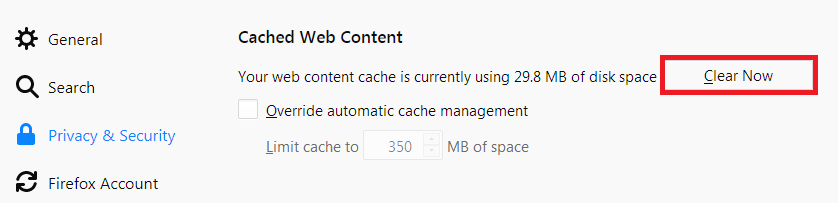
  3. In the Cached Web Content section, click Clear Now.
  4. Close the about: preferences Any changes you’ve made will automatically be saved.
'Clear Now' button in the Mozilla Privacy and Security tab for Cached Web Content.

Edge

  1. On your computer, open Edge.
  2. At the top right, click on the menu button and select Settings.
  3. In the settings menu, select Privacy, search, and services. Select Clear browsing data, then click on the Choose what to clear button.
  4. In the pop-up menu that appears, make sure the Cached images and files radio button is selected.
  5. Click the Clear now button.
  • Please select the field that best describes the error you have encountered:
  • Please select the device and browser that you are using.
  • This field is for validation purposes and should be left unchanged.

Thank you for taking the time to report a calendar issue. Please fill in as much information as you can. Not all fields are required, but providing as much information that you can share is helpful.

  • Please select the field that best describes the error you have encountered:
  • MM slash DD slash YYYY
  • This field is for validation purposes and should be left unchanged.