Have program Activity numbers (first 6 digits) ready when registration begins. Most of the Activity numbers are published in the online Playlist and are all available in the online program preview.
BEFORE OPENING DAYS:
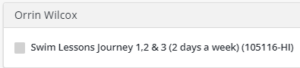
- View the programs on the online Playlist or linked to the registration website homepage and make a note of the Activity numbers for the programs you want. One exception in Playlist is Youth Swim Lessons – click the link in the online Playlist to view the offerings and Activity numbers.
- Whether your list is on paper or digital, keep that list handy for registration opening day.
- If you choose to add the programs you want to your “Wishlist” in your account, take a screenshot of all the items and their Activity numbers. This screenshot can act as your list.
- Note programs that are a priority to you and your household.
ON OPENING DAYS:
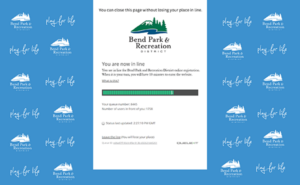
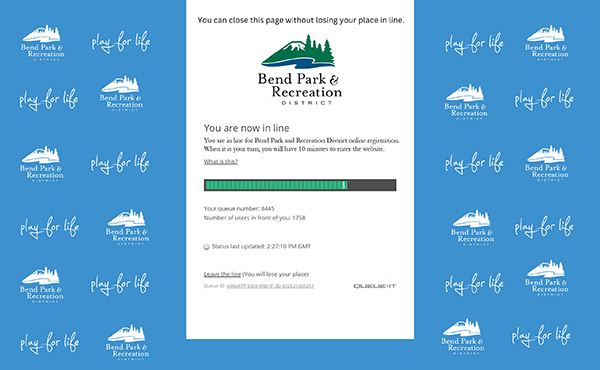
Queue-it’s virtual waiting room screen
Featuring Virtual Waiting Room: Queue-it is a virtual waiting room that serves as a line for our online registration process. It’s automatic after you log into your BPRD account, so there’s nothing needed for you to do! Queue-it will display how many shoppers are in line in front of you and you will see the number get smaller until it is your turn.
Patience is much appreciated. By providing information about how many others are in line ahead of you, it should help the morning go smoother. Some increased demand is still expected, but with two days of staggered registration, it will be a smaller number of programs than if all at once.
Here are the steps for opening days:
- Log into your BPRD account. If you log on before 6:00 a.m., you and any others will be randomized at 5:59 a.m. After 6:00 a.m., the line will form one after another just like in person at the movie theater. The wait time may vary, but knowing how many are ahead of you will allow you to plan your morning.
- Wait for your turn. The virtual waiting room is automated and there’s nothing you need to do. If your computer or browser window unintentionally close or shut down, don’t panic. Just turn the same device and browser back on and a helpful “cookie” will remember you and your place in line.
- When it’s your turn, add programs to your cart and register. The shopping and registration experience is consistent with past seasons. Use a wish list or enter Activity numbers to add to your shopping cart.
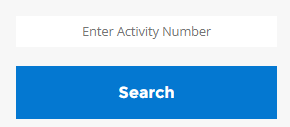
- Starting with your priority programs, type the Activity number at the bottom of the registration menu, or from the search menu in the top navigation.
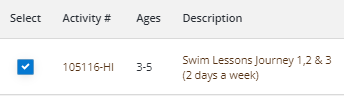
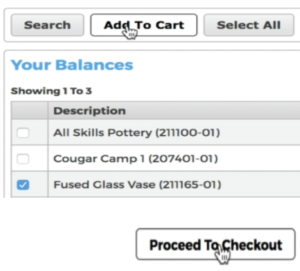
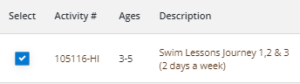
- Select the check box next to your program.
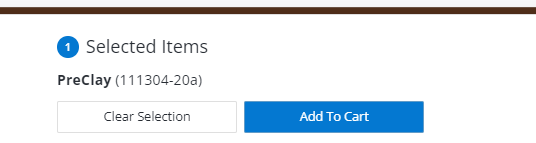
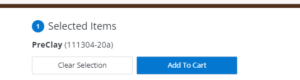
- Note the notification bar at the bottom of the screen and select ‘Add to cart’.
- Confirm details/waivers/etc. for each of the participants.
- If you have other priority programs you’d like to enroll in, click on the “Continue Shopping” button. Repeat above steps from entering in Activity number to adding the program into your cart. You can have multiple programs in your cart.
- Once your priority activity or activities are in your cart, check out promptly so you get into the programs you want and your session isn’t accidentally timed out due to inactivity. Important: your transaction must be completed before your enrollment is confirmed.
- Look for your confirmation email.
- After you’ve registered for your priority programs, now is the time to go back and shop for the programs that weren’t your top priority, repeating the above steps.
- When you complete your transaction(s), log out of your account. This step helps the virtual waiting room allow others in for their turn.